✅ Authorizing and de-authorizing
Authorizing Liberation
When you open Liberation for the first time, it'll run in free mode and you'll see the About panel:

Click on the AUTHORIZE ONLINE button and your web browser will open. If you are not already logged in, you will be prompted to do so now.
The system will now automatically authorize your installation with your license, and you'll see a confirmation message.
When you return to Liberation you'll see the About panel has updated (you may have to wait a few seconds).
Congratulations! Your Liberation install has now been authorized and you can output to lasers! But please read the Quick start guide and Laser setup process overview before arming your lasers.
De-authorizing Liberation
From within Liberation - Open the menu Liberation -> Authorize / De-authorize this Computer and click the DEAUTHORIZE COMPUTER button. That's it! You need to be online for this to work.

Alternatively you can do this from the website. Select Your licenses from the menu, then click MANAGE for the relevant license. If your account only has one license, Your licenses will take you straight to that license page. You should see information about your license and a list of the computers you have authorized.
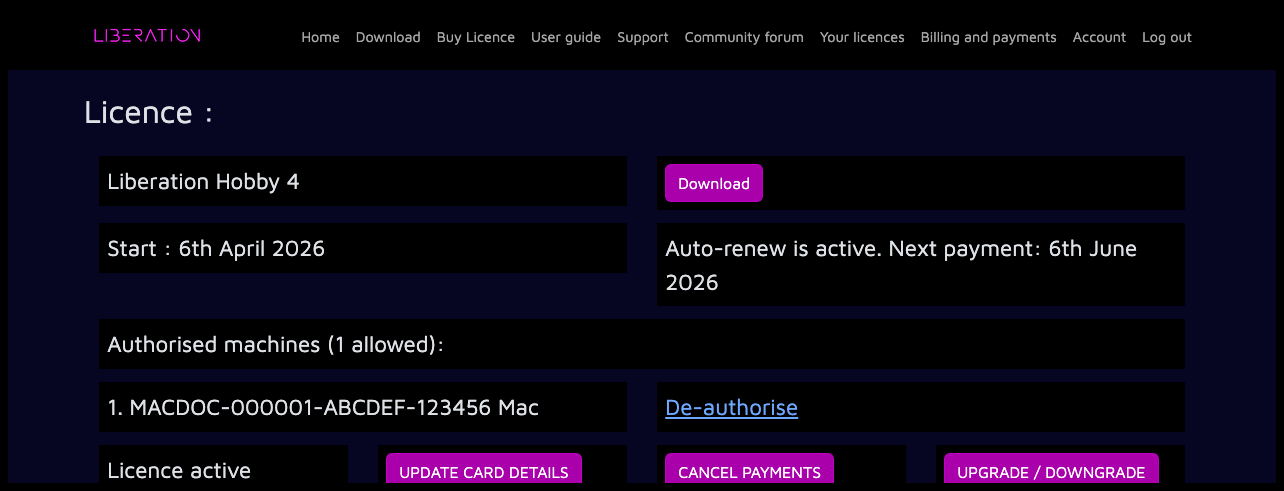
Click the De-authorize link next to the machine you want to de-authorize
If your machine hasn't been online since your last license refresh it will be deauthorized immediately. If not, then the machine is queued for deauthorization. This means that deauthorization will automatically happen next time the machine is connected to the internet, or on the next license refresh date, whichever happens first.